
To help with troubleshooting in HyperTTS, it may sometimes be useful to output a debug log, this is a very detailed log file which contains information about every step undertaken while using HyperTTS. Here's how to run HyperTTS with debug log enabled, these instructions are specific to Windows.
Click the start menu. Type Anki, locate the Anki icon, right-click, then click Open file location.

This will bring you to the Start Menu shortcut. Right-click the icon which says Anki it and select Properties.

Notice the Start in field. That's where Anki is installed. We want to select it, and copy it.

Now, click the Start Menu again, and type cmd. Click the Command Prompt icon.

Once in the command prompt, we will type a few commands:
cd C:\Users\Luc\AppData\Local\Programs\Anki (this is the directory we found earlier)set HYPER_TTS_DEBUG_LOGGING=fileset HYPER_TTS_DEBUG_LOGFILE=%TEMP%\hypertts.loganki
Now, Anki will start up. Use Anki normally, and try to reproduce the issue that you are trying to identify, or run through the steps that are problematic. One you are done, open Windows Explorer, and type %TEMP% in the address bar.
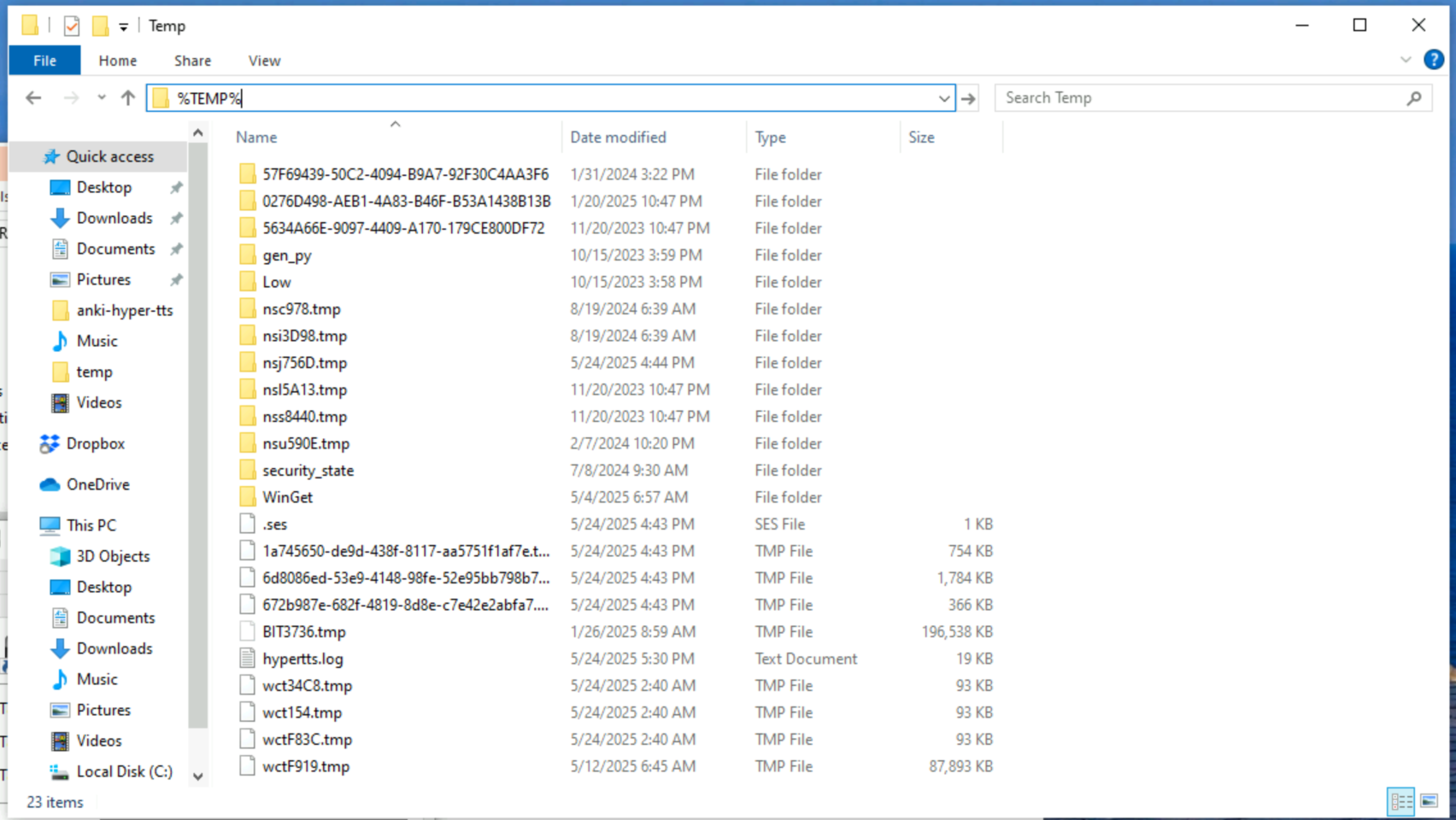
You should see a file named hypertts.log in the directory. You may email this file to support@mail.vocab.ai, or upload it to https://www.dropbox.com/request/X9L4mhPqEcfvKFuSm2nK
February 5, 2026
Can't find what you're looking for ? Please email help@mail.vocab.ai or chat with us and I'll try to help you out as soon as possible.