
As of HyperTTS 3.5.0, there is now an automatic configuration backup, which you can access from the Anki Tools menu, then HyperTTS: Preferences, and then go to the Configuration Backups tab.
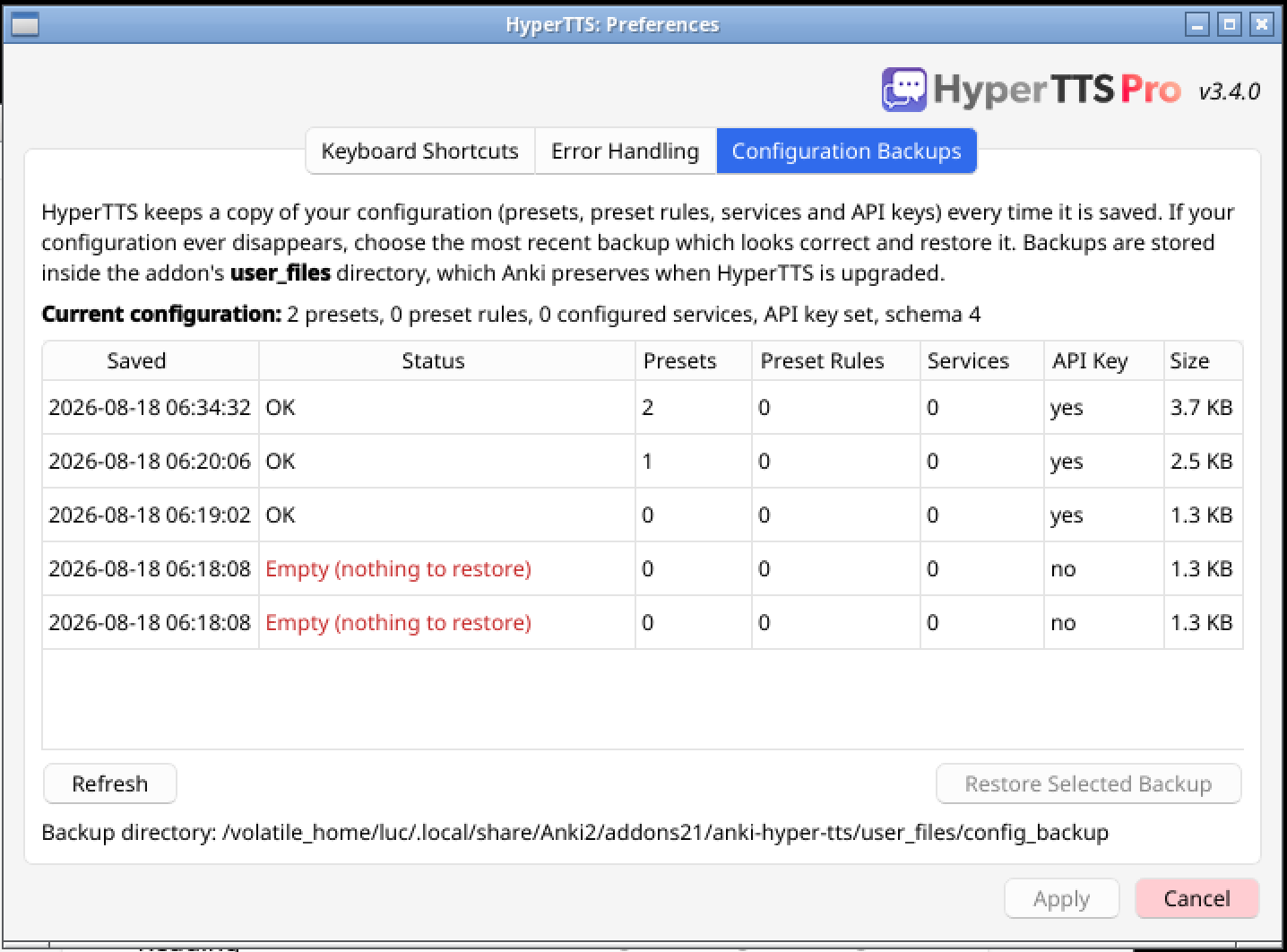
From that screen, you can restore a previous configuration if you lost your settings.
for older HyperTTS releases.
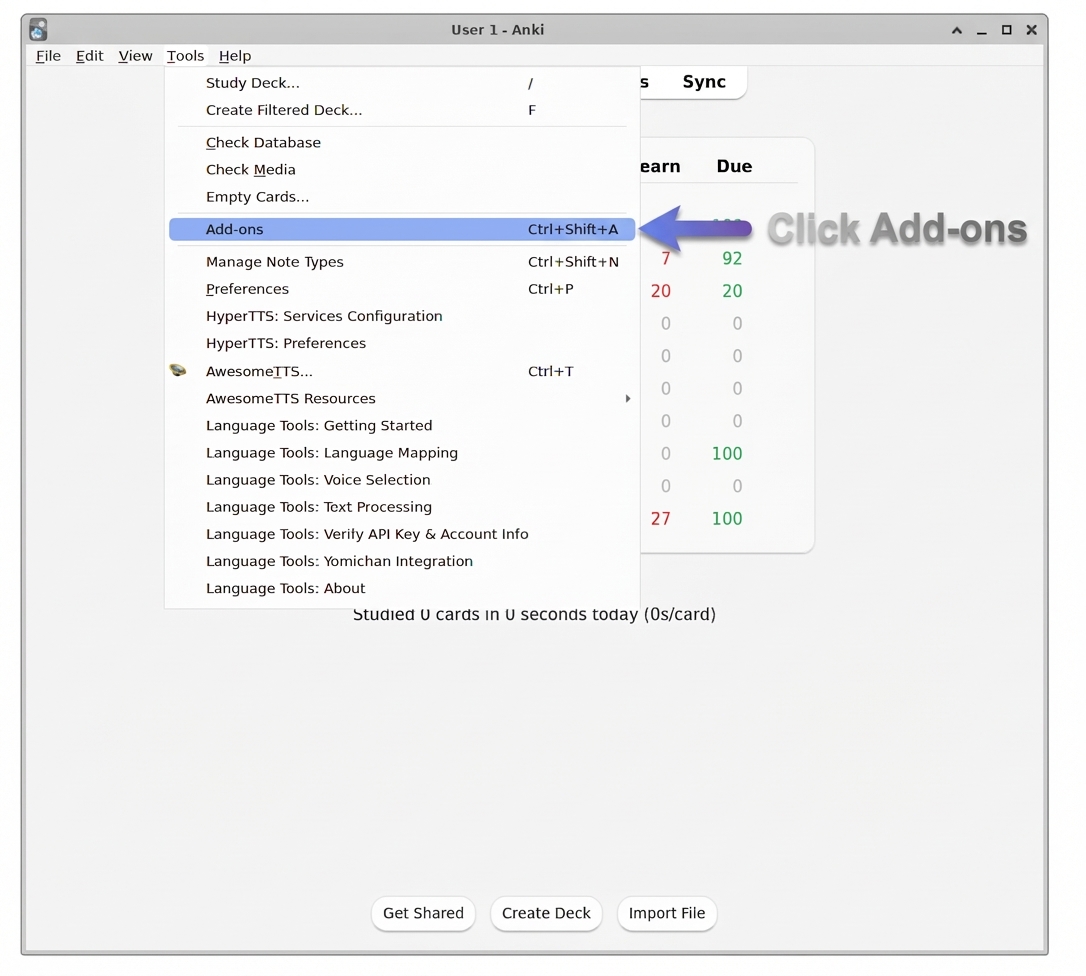
In Anki, go to the Tools menu and click Add-ons.
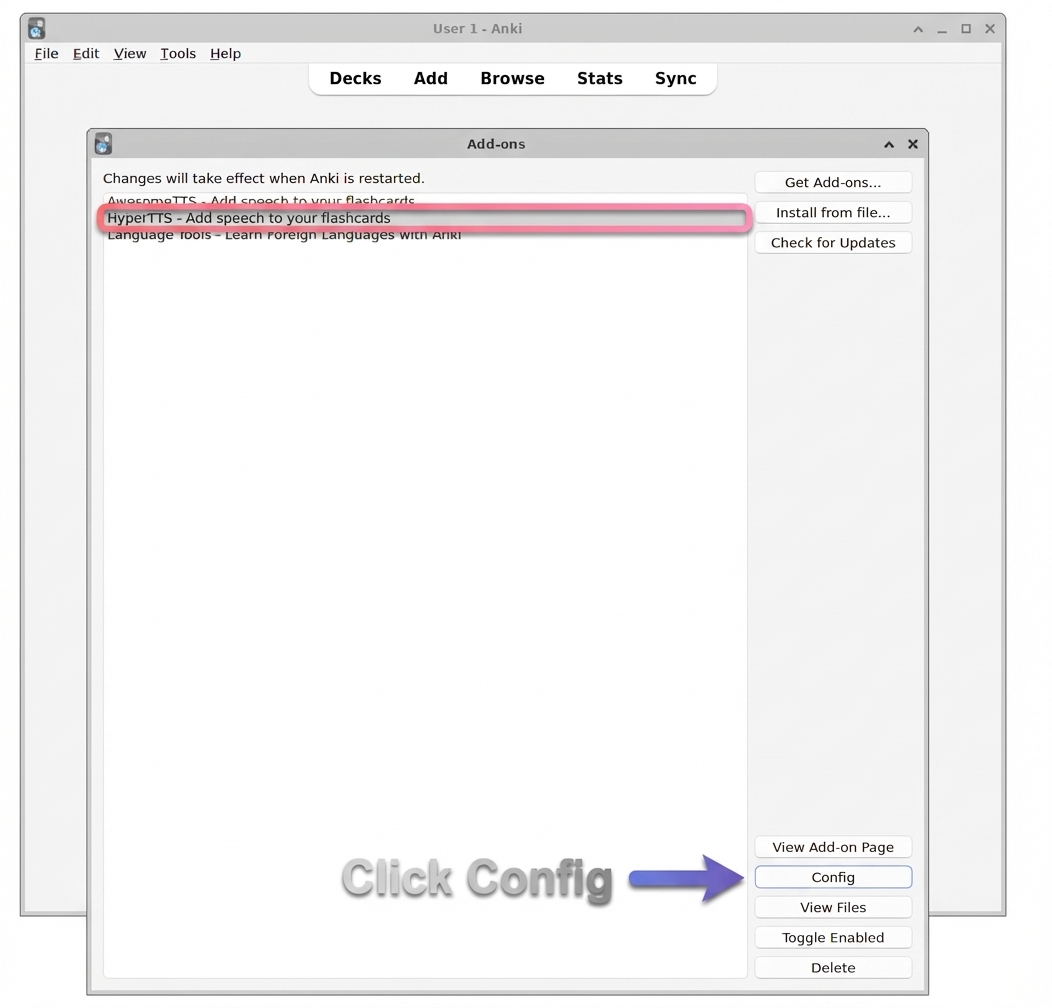
In the Add-ons window, select HyperTTS - Add speech to your flashcards from the list, then click the Config button at the bottom right.
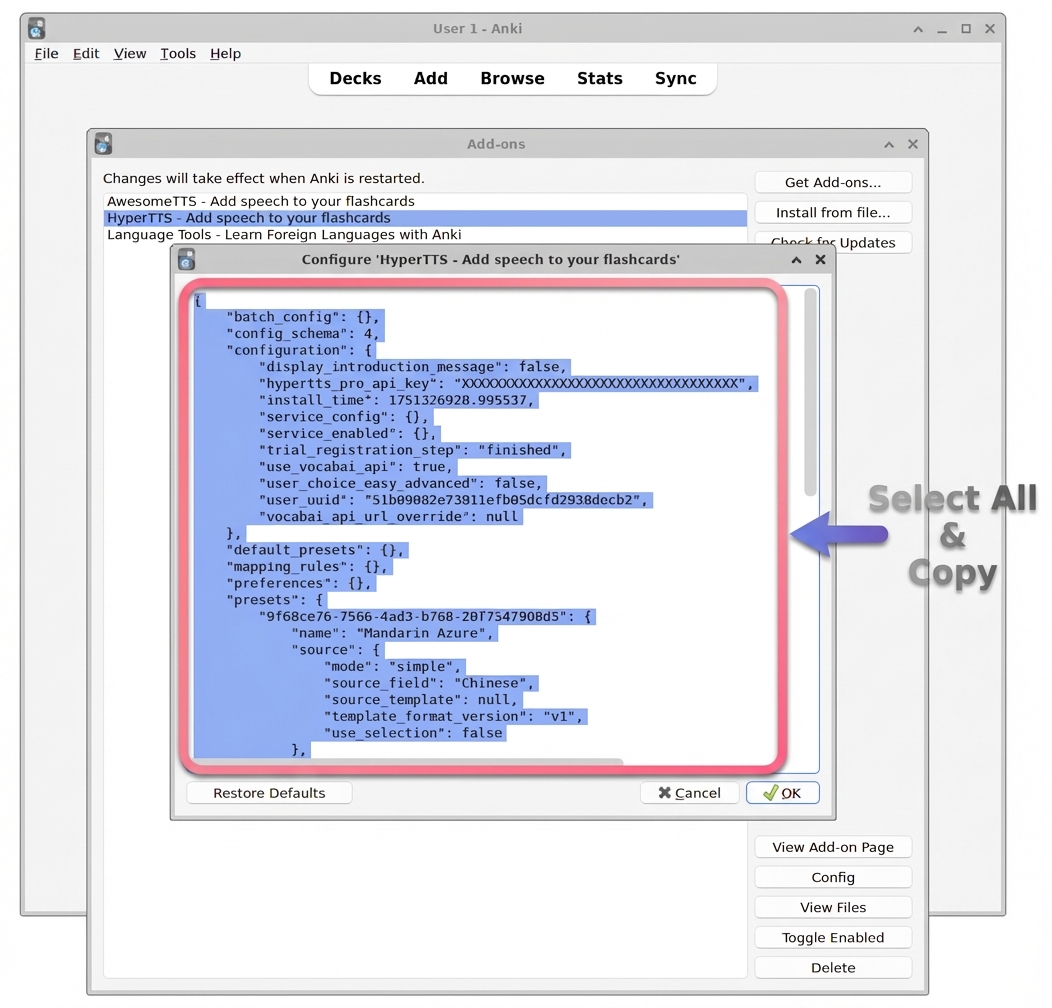
A configuration window will open, displaying your HyperTTS settings in JSON format. Select the entire contents of this window (you can use Ctrl+A to select all), then copy it to your clipboard with Ctrl+C.
Open a text editor on your computer (such as Notepad, TextEdit, or any code editor), paste the copied configuration with Ctrl+V, and save the file to a safe location on your computer. You can name the file something like hypertts_backup.json.
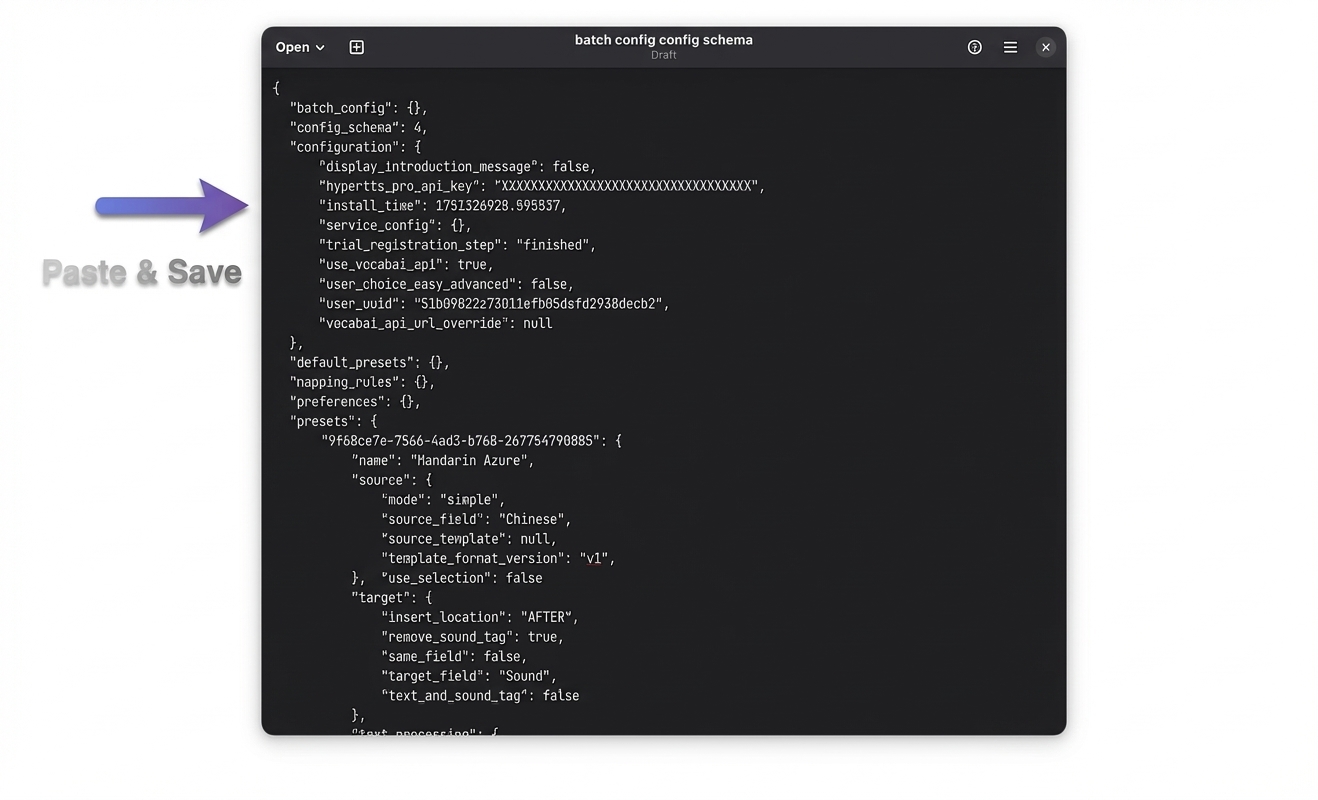
If you ever need to restore your settings, simply reverse the process: open the HyperTTS config window following Steps 1 and 2 above, select all existing content in the config window, then paste your saved backup over it and click OK.
August 18, 2026
Can't find what you're looking for ? Please email help@mail.vocab.ai or chat with us and I'll try to help you out as soon as possible.