
HyperTTS Pro subscribers can use the built-in ElevenLabs integration, but you may want to use your own ElevenLabs API key instead. The ElevenLabsCustom service lets you do exactly that. Here's why you might want to enable it:
Setting this up takes just a few minutes. Follow the steps below.
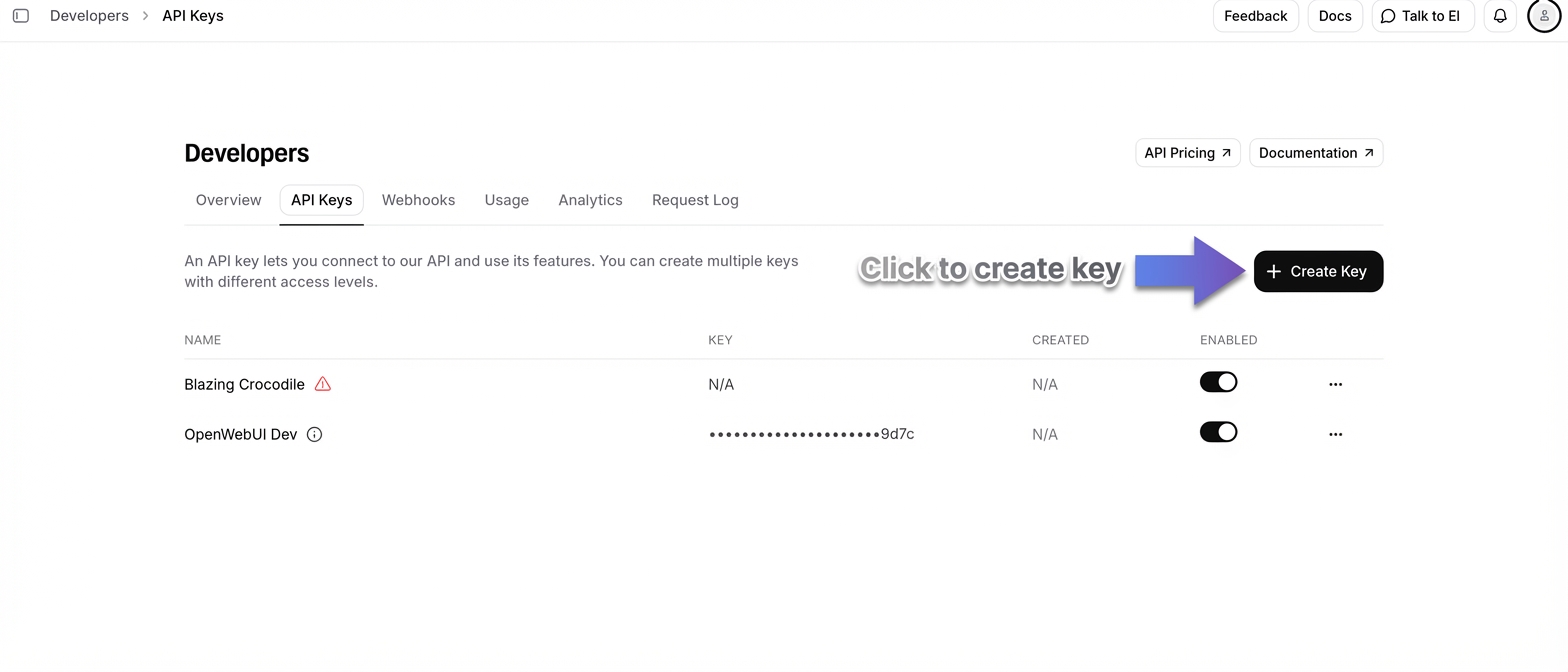
First, head over to the ElevenLabs developer console to create a new API key.
+ Create Key button in the top-right area of the API Keys page.Important: your API key should start with sk_
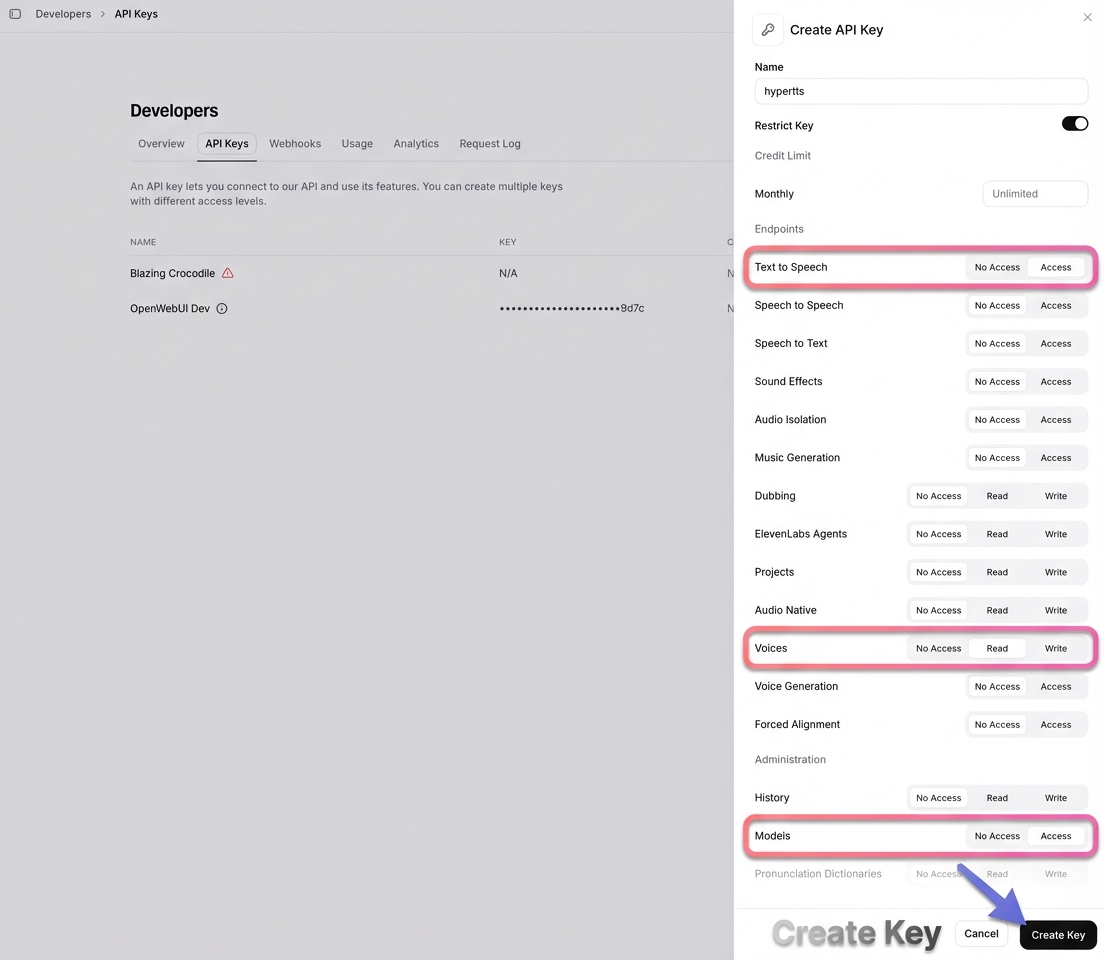
When the Create API Key dialog appears, give your key a name (for example, hypertts), then set the following permissions. These are the minimum permissions required for HyperTTS to work:
Text to Speech → set to AccessVoices → set to ReadModels → set to AccessOnce you've configured the permissions, click Create Key. Copy the API key that is displayed — you'll need it in the next step.
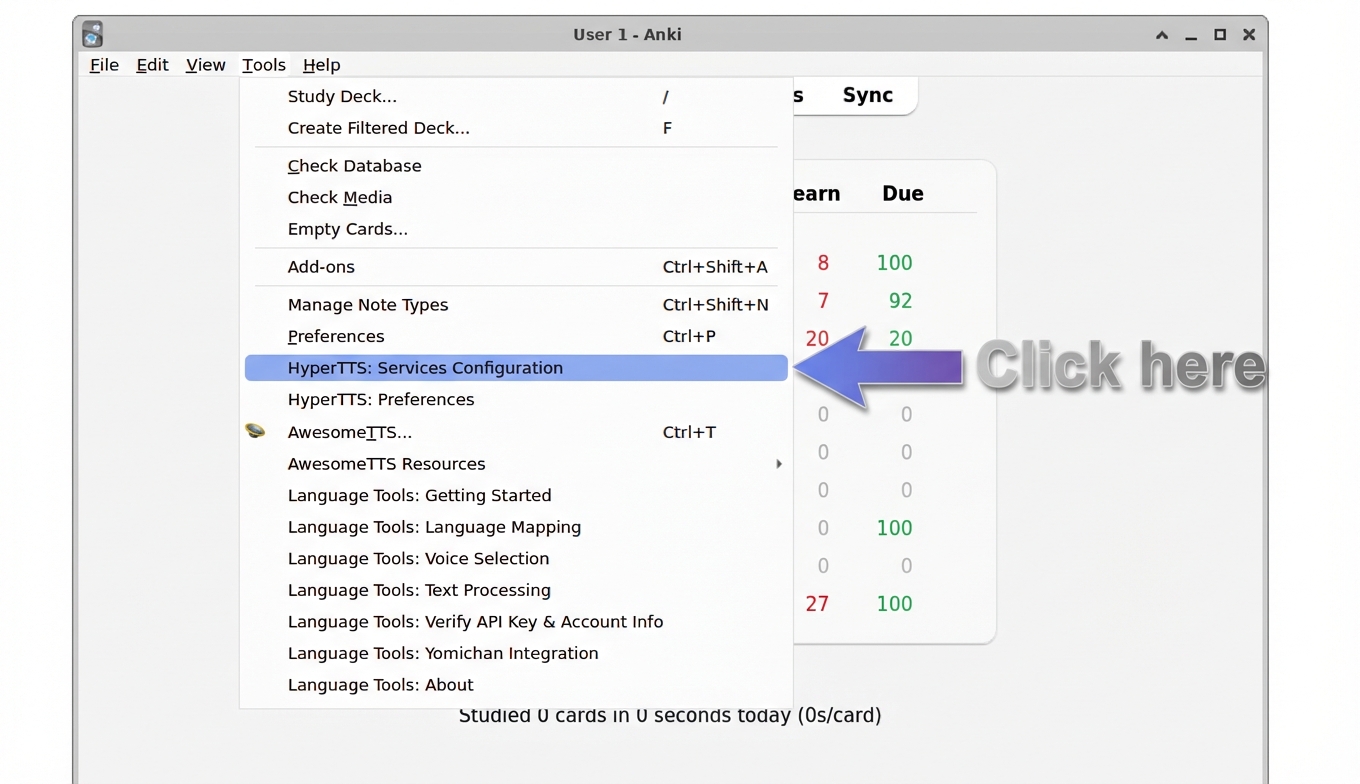
In Anki, go to the Tools menu and click HyperTTS: Services Configuration.
In the Services Configuration window, scroll down to find the ElevenLabsCustom service. Then:
Enable checkbox.api_key field.Save.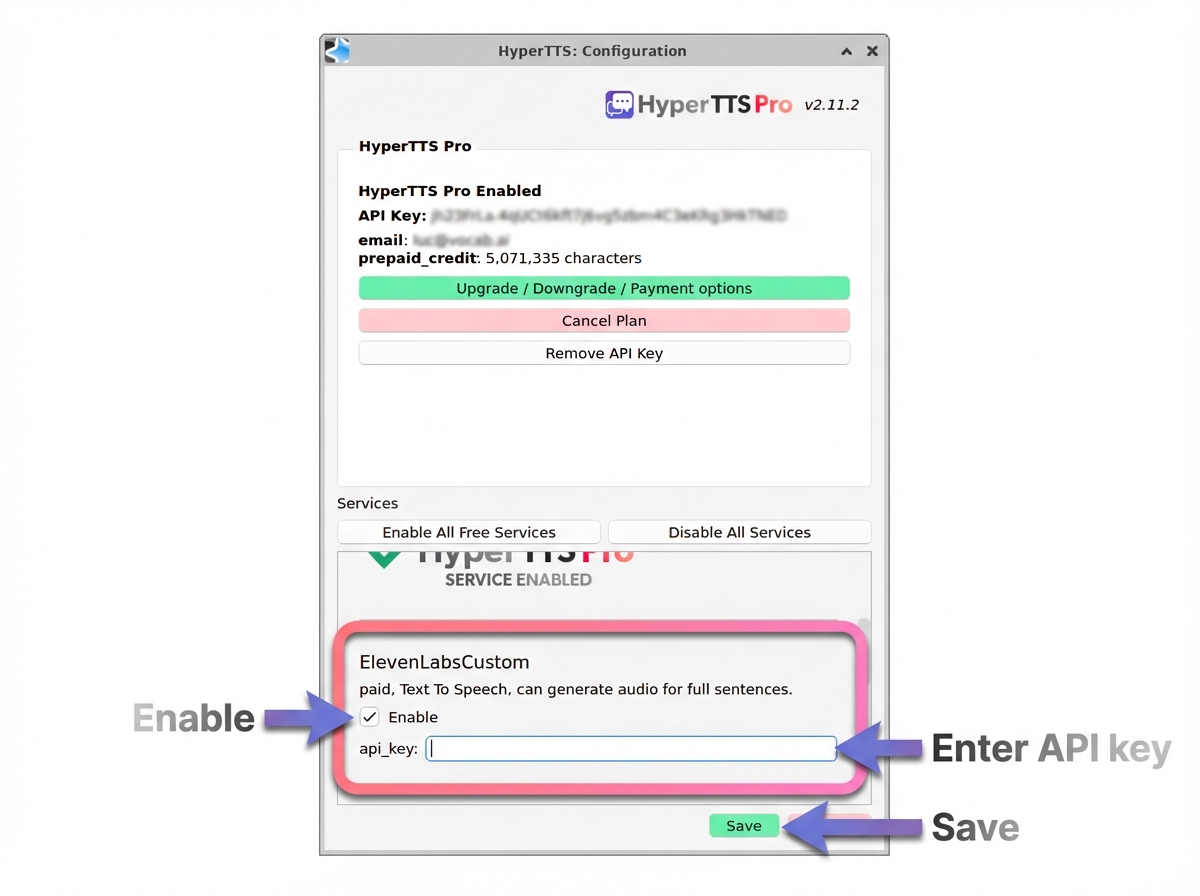
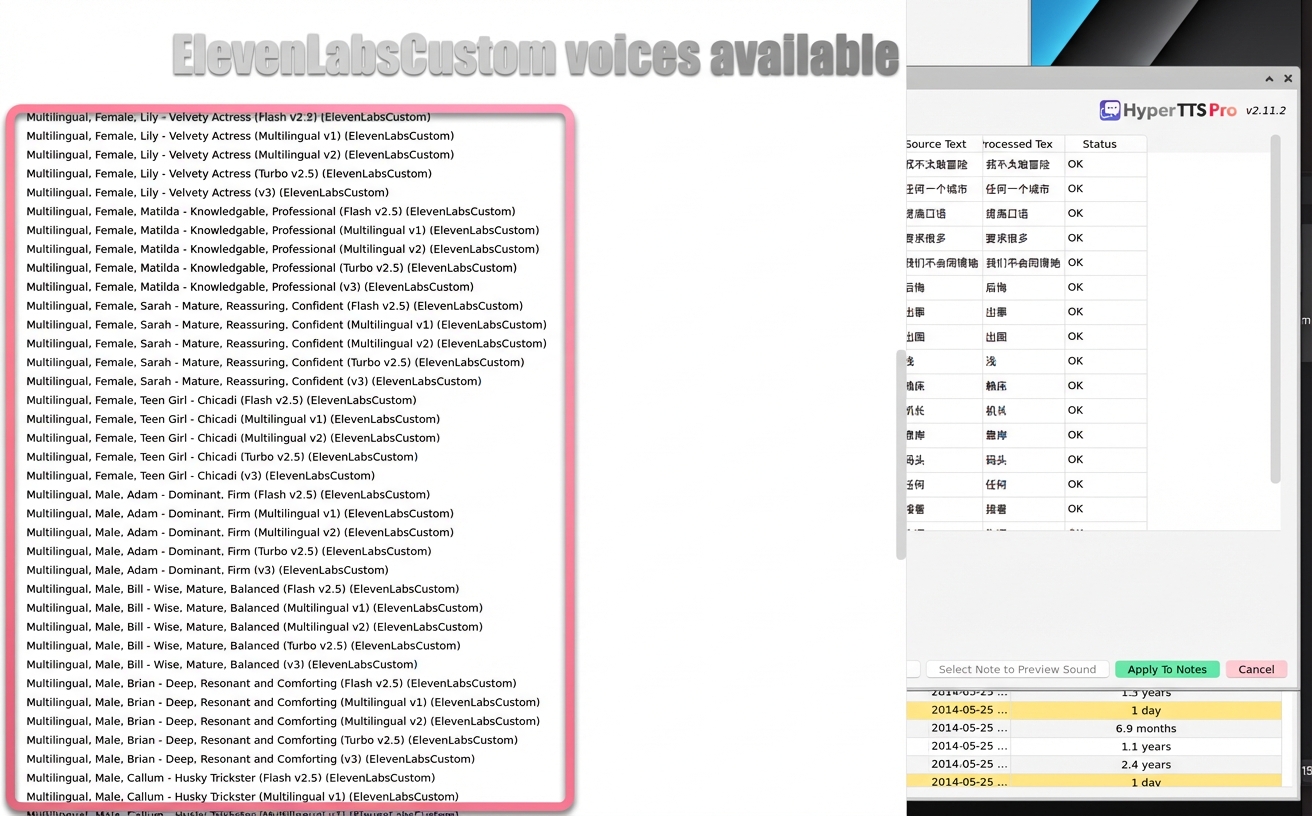
That's it! After saving, HyperTTS will load all the voices available on your ElevenLabs account, including any custom or cloned voices you've created. You'll see them listed as ElevenLabsCustom voices in the voice selection panel.
September 1, 2026
Can't find what you're looking for ? Please email help@mail.vocab.ai or chat with us and I'll try to help you out as soon as possible.