
When adding audio to a large number of cards at once using HyperTTS, you may want to skip cards that already have audio in their Sound field. This is especially useful if you regularly add new cards to your deck and want to make sure only the newly added cards receive audio, without re-processing cards that already have it.
This technique requires that your note type uses a separate field for storing the audio tag (for example, a field called "Sound"). If you'd like to learn more about configuring note types in Anki, check out our tutorial: Anki: Configuring Note Types.
First, open the Anki Browser by clicking Browse in Anki's main window. Select your deck in the left sidebar — for example, click on Mandarin. In the filter bar at the top, you'll see something like deck:Mandarin. On the right side, you can see the fields for the selected note, including the Sound field which contains audio tags like [sound:languagetools...].
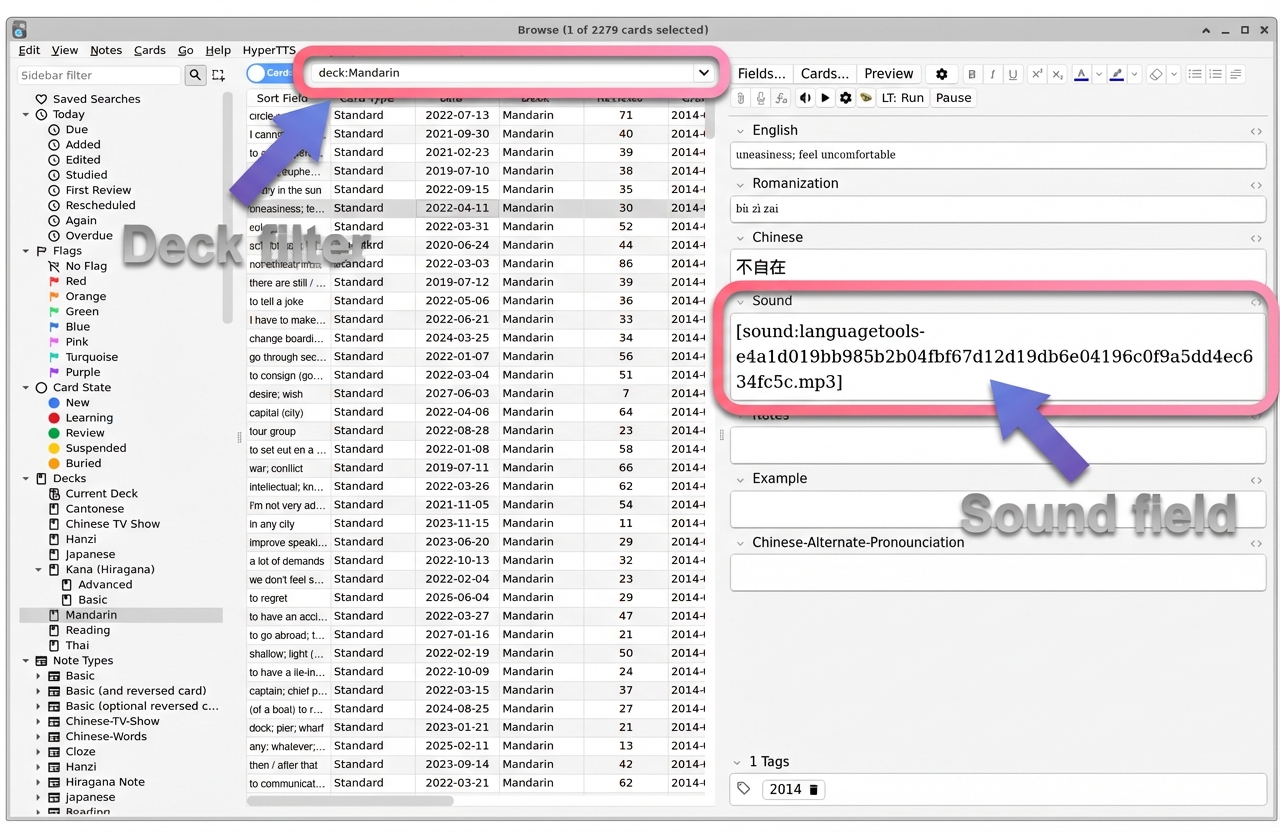
Take note of the deck filter at the top and the Sound field on the right. Cards that already have audio will show a [sound:...] tag in the Sound field.
Now, modify the filter query at the top of the browser to find only cards that do not have audio yet. Change the query to:
deck:Mandarin Sound:
The syntax Sound: (with a colon and nothing after it) tells Anki to match notes where the Sound field is empty. This will filter your results to show only the cards that still need audio.
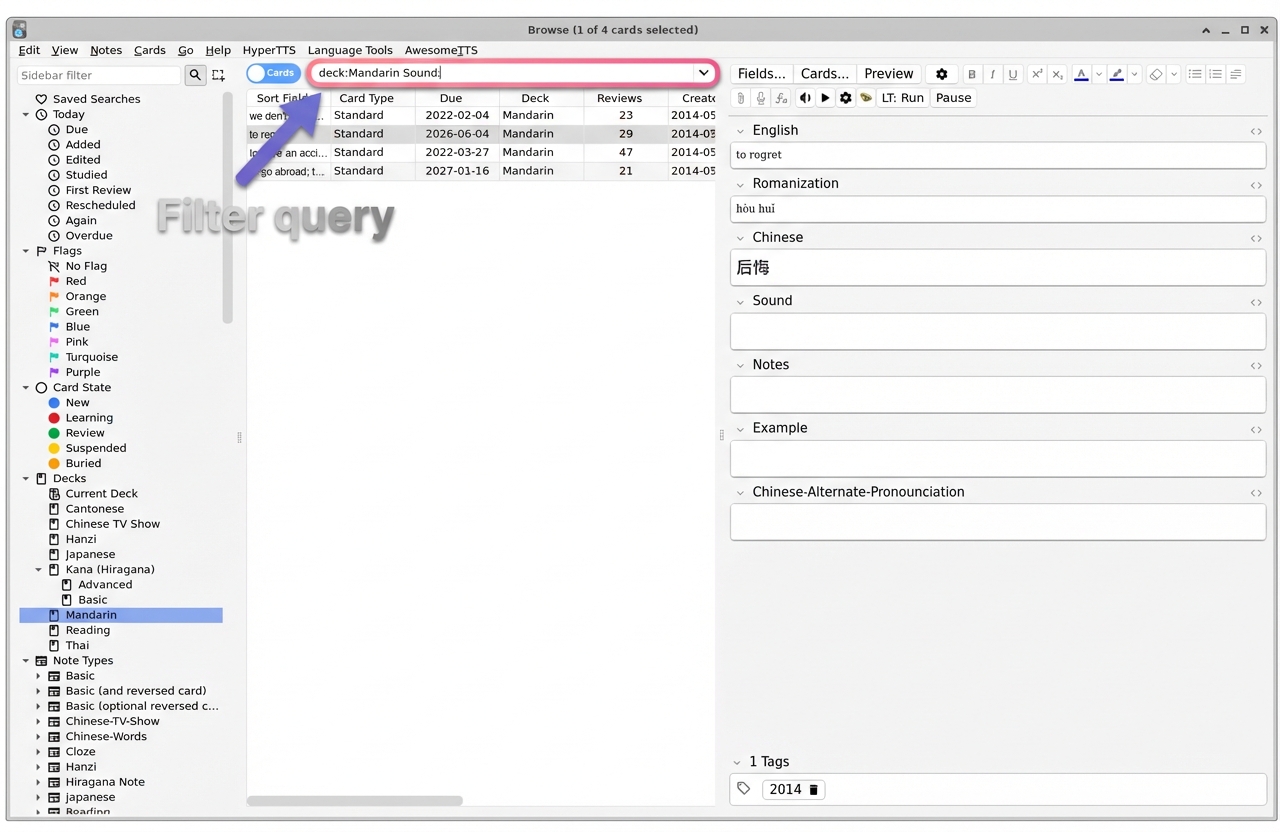
In the example above, only 4 cards are returned — these are the cards in the Mandarin deck that have an empty Sound field and need audio.
Select all the filtered cards by pressing Ctrl+A (or Cmd+A on Mac). Then, click the HyperTTS menu in the menu bar and select Add Audio (Collection)....
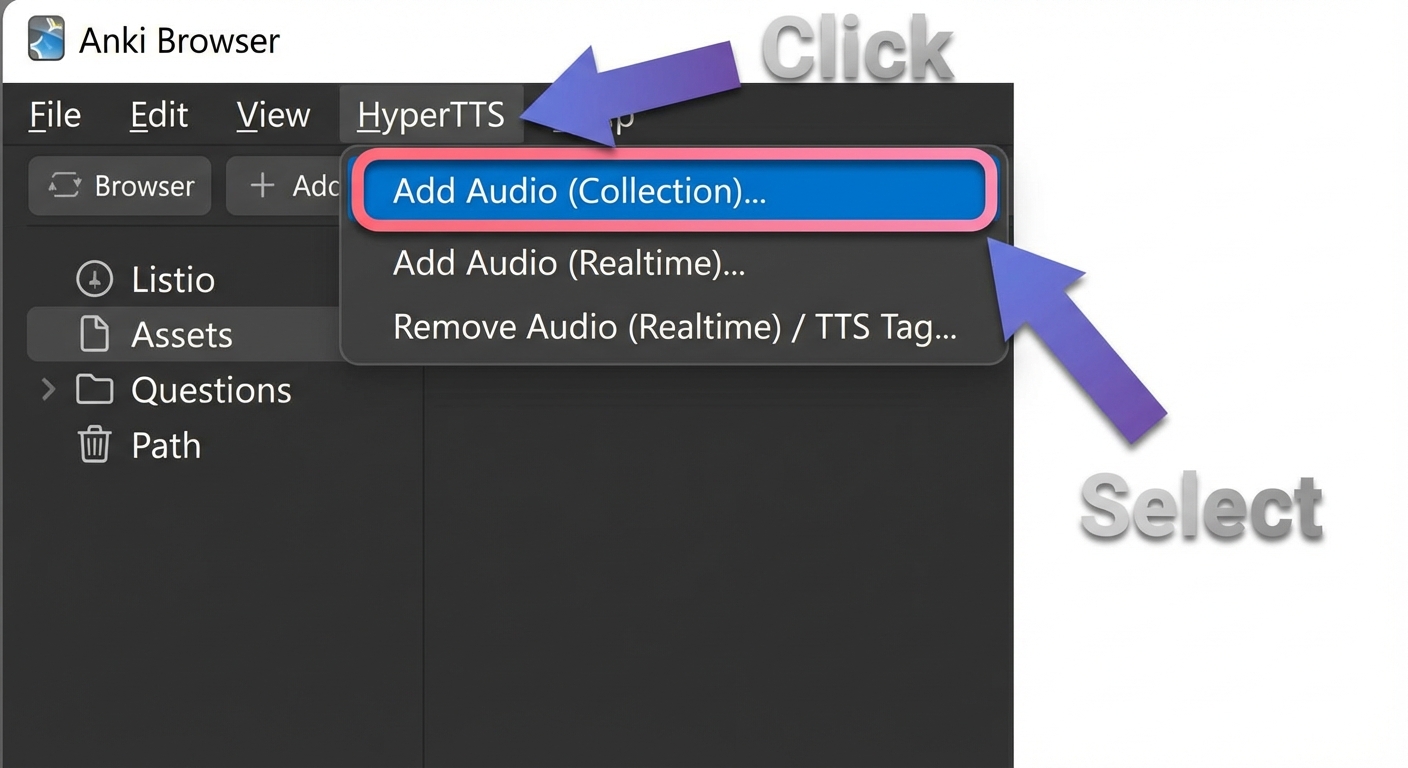
HyperTTS will now add audio only to the selected cards — the ones that don't have audio yet. Cards that already had audio in their Sound field were excluded by the filter, so they won't be processed again.
By using Anki's browser filter with the syntax deck:YourDeck Sound:, you can easily identify cards that are missing audio and add it in bulk with HyperTTS. This is a great workflow for anyone who regularly adds new cards and wants to keep their deck fully equipped with audio without duplicating work.
February 23, 2026
Can't find what you're looking for ? Please email help@mail.vocab.ai or chat with us and I'll try to help you out as soon as possible.